


Discord Welcome Bot
A new member who lands in a silent channel often never writes a word. The moment someone joins, VeyroBot posts a message mentioning them in the channel you choose, with a large welcome card below it showing their avatar, name and member number, and gives them their starting role; when a member leaves, it posts a goodbye card. Everything is set in the Welcome Studio and Auto Roles tabs of the dashboard.

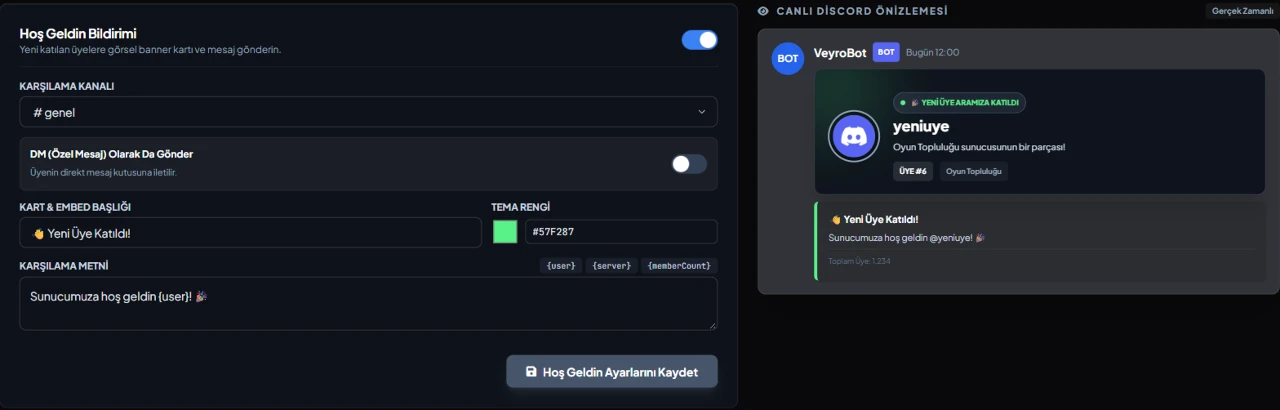
Image welcome card
The message is the welcome text set in the dashboard ({user} mentions the new member); the large card attached below it as a file shows the member's avatar, display name, @username, member number and account age. The card design is fixed and its text is drawn in the server's bot language. Your text can use the {user}, {username}, {server} and {memberCount} variables; only the member who joined gets a notification, and @everyone and roles are never pinged.
In a channel, and by DM if you want
The welcome goes to the text channel you pick; you can also send the same message and card to the member by DM. Members with DMs closed won't get the DM, but the channel message still goes out. Bots added to the server get a channel card too, never a DM.
A separate goodbye card
When a member leaves, a message with their username in bold (no ping) is posted in its own channel, together with a goodbye card showing members left and how long they were in the server; you can write your own goodbye text instead. Goodbye is switched on and off independently of welcome, and it only goes to the channel, never by DM.
Separate auto roles for humans and bots
Humans who join get one role and bots get another, optionally after a 0–300 second delay. A delayed role is still given on time even if the bot restarts. If captcha is on in Anti-Raid Shield, a human member's role waits until they pass verification.
Who it’s for
Communities that want to greet new members visibly and give them the right starting role; servers that want joiners to pass a captcha before they get that role.
Who it’s not for
Servers that need to hand a new member several roles based on rules — here you choose just one role for humans and one for bots. It's also not for you if you want to change the welcome card's title and colors to your own design; the card design is fixed.
Setup in 3 steps
-
1
Add the bot to your server
Open the invite link above, pick your server and approve the permissions. The bot comes online within seconds.
-
2
Set the welcome channel and message
Dashboard → your server → Welcome Studio: turn welcome on, pick a text channel, write your own message (up to 2,000 characters) if you want, choose the mention and image card switches, and save. The channel and message can also be set with /setwelcome. Goodbye settings are in the same tab.
-
3
Choose the auto role and check role order
In the Auto Roles tab, pick the human and bot roles and a delay if needed; the human role can also be set with /setautorole. In Server Settings → Roles, move the VeyroBot role above the roles it gives out; the bot needs Manage Roles.
Related commands
For the full list of commands, see the commands page.
Step-by-step usage in the docs: Welcome & Farewell Studio
Sourced, dated comparisons with other bots: MEE6 and VeyroBot comparedDyno and VeyroBot comparedCarl-bot and VeyroBot comparedTatsu and VeyroBot comparedBetterAntispam and VeyroBot comparedMEE6, Dyno and Carl-bot compared
Frequently asked questions
With captcha on, does the welcome message wait for verification too?
No. The welcome message goes out as soon as the member joins; only the auto role waits. To turn captcha on you need either an auto role for human members or a “verified role” set in Anti-Raid Shield to grant after verification; without either, the gate would have no role to hold back or give.
Can I turn off the card and send only a text message?
Yes. A switch in the dashboard turns the image card off separately for welcome and goodbye; then only the message text is sent. If the bot lacks the Attach Files permission, the card is dropped and the text still goes out. If more than 10 members join or leave within a minute (or the Anti-Raid lockdown is on), no cards are made and a single summary message is sent.
Can a member get more than one auto role?
No. You choose one role for humans and one for bots. The role must be below the bot's highest role, and @everyone or bot integration roles can't be used. For extra roles members pick themselves, use reaction roles.
The welcome message isn't arriving, what should I check?
In Welcome Studio, check that welcome is on and a Welcome Channel is selected. The bot needs the View Channels and Send Messages and Create Posts permissions in that channel, plus Attach Files for the card. If the channel was deleted or a permission is missing, nothing can be sent, and the problem shows up among the failures of the last 72 hours in the Server Health card on the Overview.
Can I see how the card will look in Discord beforehand?
Yes. The live preview in Welcome Studio draws the card with the same renderer the bot uses for the card it posts in Discord; it shows your name and avatar, with texts in the server's bot language. The welcome and goodbye cards are previewed separately.
Can I welcome new members without notifying them?
Yes. If you turn off the Mention the new member switch in Welcome Studio, {user} still shows as the member's mention in the message, but no notification is sent to them.
Related articles
How to Set Up Discord Welcome Message and Auto Roles
First role and channel permissions, then the message: set up the automatic role and card welcome message for new members via the dashboard or command, choose the right option between delay and captcha, and avoid the five most common mistakes.
Making Your Discord Bot Turkish: How to Change Bot Language?
Set your bot language to Turkish from the dashboard, see how the Auto option affects different messages, and learn why the command menu adapts to each member's Discord language. We also explain the difference between dashboard language and bot language.
Adding it is all it takes to try
Add VeyroBot to your server and turn on the modules you want in the web dashboard. You can switch off anything you don't use.
Add to Server for Free