How to Set Up Discord Welcome Message and Auto Roles
First role and channel permissions, then the message: set up the automatic role and card welcome message for new members via the dashboard or command, choose the right option between delay and captcha, and avoid the five most common mistakes.
This article was translated automatically from the Turkish original. Read the Turkish original
In this article
- First: role order and channel permissions
- Step 1: Set up the auto role
- Step 2: Set up the welcome message
- What do the variables write?
- Step 3: Goodbye message (optional)
- Delay, captcha, or neither?
- If the welcome is not sent or the role is not given
- Which servers is auto role not right for?
- Frequently asked questions
In short
Welcoming a new member consists of two separate tasks: the auto role determines which channels the member can see, and the welcome message tells them where to begin. In VeyroBot, both are set up from the dashboard: the role from the Auto Roles tab, and the message from the Welcome Studio tab. For quick setup, you can also use the /setautorole and /setwelcome commands.
Order matters: set up the role and channel permissions first, then the message. If the message goes to the right channel but the member cannot see that channel, the welcome goes to waste.
First: role order and channel permissions
- The bot role must be positioned above the role it will assign. In your Discord server settings, move the VeyroBot role higher than the auto-assigned role in the role list. The bot must have the Manage Roles permission.
- The bot must be able to write in the welcome channel. The channel must grant the bot permissions to view the channel, send messages, embed links, and attach files. Welcome cards are added to messages as file attachments; without file permissions, the message cannot be sent at all.
- New members must be able to view the welcome channel. If the channel is restricted to a member role and the role is given with a delay, the member will only see the message after the role is assigned.
- You must have the proper permissions for commands.
/setwelcomerequires the Manage Server permission, and/setautorolerequires the Manage Roles permission.
You can find a detailed explanation of how role hierarchy works in the Discord role and permission system article.
This topic in VeyroBot:Discord Welcome Bot →
Step 1: Set up the auto role
In your Dashboard → your server → Auto Roles tab, there are three settings:
- New Member Role (Humans) — assigned to every human member who joins the server.
- New Bot Role — assigned to bots added to the server. Grouping bots under a separate role makes it easier to manage channel permissions for them specifically.
- Role Grant Delay (Seconds) — between 0 and 300 seconds. 0 grants the role instantly.
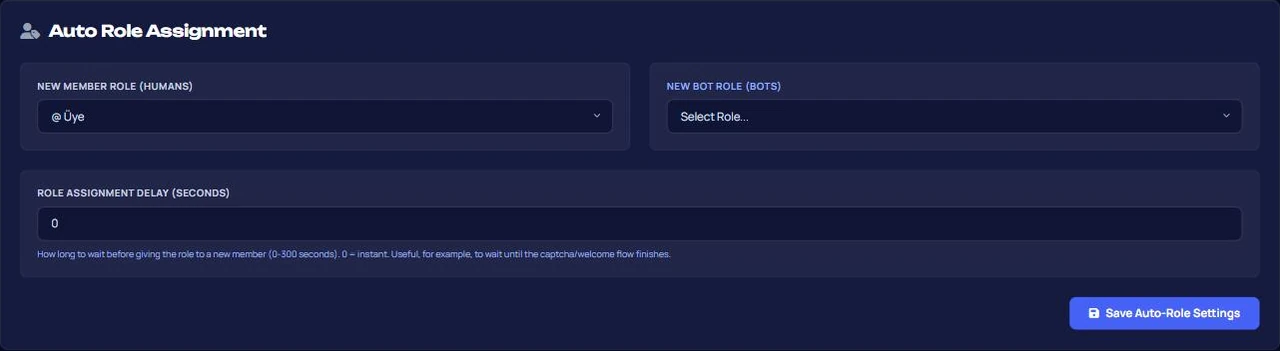
Save the settings using Save Auto-Role Settings. During saving, @everyone and bot integration roles are rejected, and roles positioned below or at the bot's role are also not accepted. If you are not the server owner, the role you select must also be lower than your highest role.
You can set the human member role using the command: /setautorole role:@Member. If you run it without selecting a role, the auto role will be disabled.
Step 2: Set up the welcome message
In your Dashboard → your server → Welcome Studio → Welcome subtab:
- Turn on the Welcome Notification toggle.
- Select the Welcome Channel. If no channel is selected, messages will not be sent anywhere.
- Enter the Card & Embed Title, Embed Theme Color, and Welcome Message. The live preview in the tab shows how the card will look.
- Optionally, turn on Also Send as DM (Direct Message).
- Click Save Welcome Settings.
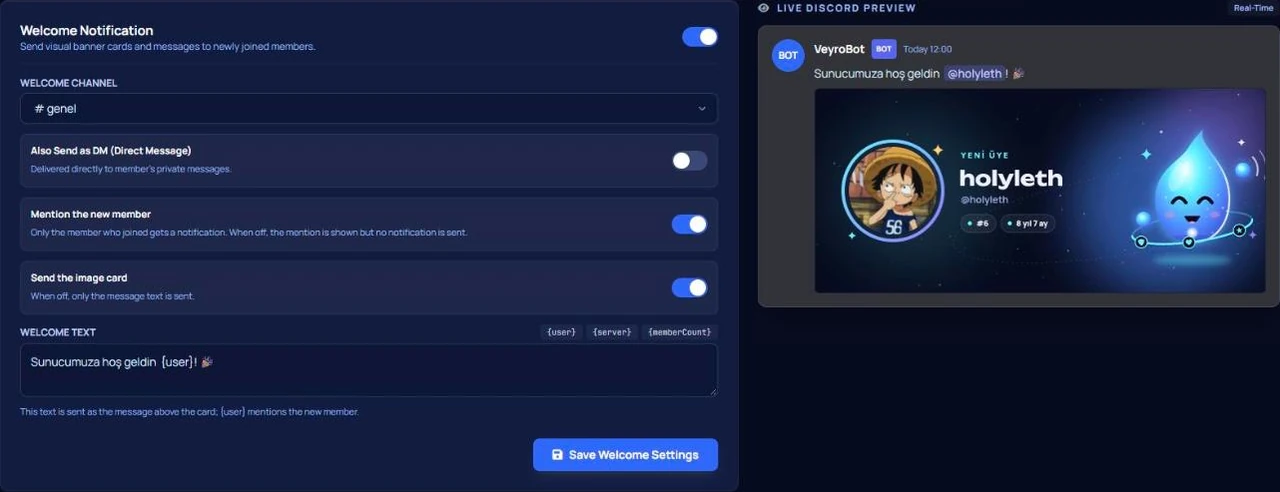
Via command: /setwelcome channel:#welcome message:Welcome to our server, {user}!. The message can be up to 1000 characters long; if left blank, the default text is used. The command enables both the welcome feature and the module, meaning you don't need to manually toggle it on in the dashboard.
What do the variables write?
{user} | Mentions the member in the welcome message. On the card itself, it appears as @username instead of a mention. In the goodbye message, it writes only the name rather than a mention; mentioning someone who has left has no effect. |
{username} | The member's username without the tag. |
{server} | The name of the server. |
{memberCount} | The total member count at the moment of joining. |
Step 3: Goodbye message (optional)
In the same tab under the Goodbye subtab, turn on the Goodbye (Farewell) Notification, enter the Goodbye Channel, Farewell Title, and Farewell Message, and click Save Goodbye Settings. Goodbyes can be toggled independently of welcomes and are sent exclusively to a channel.
Recommendation: direct goodbye messages to a quiet channel or a staff-only channel rather than a public chat. Seeing departures in the middle of conversations, especially during mass leaves, does not send a positive signal to remaining members.
Delay, captcha, or neither?
| Delay 0 | Roles are assigned instantly. Ideal for calm servers that grow through invites. |
| Delay 30–120 sec | Accounts that join and leave immediately depart without receiving a role. The pending role is written to the database; even if the bot restarts in the meantime, it will be assigned when the time comes. If the member leaves before the timer expires, the role is not granted. |
| Captcha | Enabled in the Anti-Raid Shield tab. The human member's role is held until they solve a visual puzzle verification, while the welcome message is sent immediately without waiting. For the captcha to work, either the human member role must be selected in the Auto Roles module, or a verified role to be assigned after verification must be selected in the Anti-Raid Shield. |
How to set up captchas along with raid protection is explained in the Discord anti-raid setup guide.
If the welcome is not sent or the role is not given
- Enabling welcomes without selecting a channel. The toggle stays on in the dashboard, but nothing gets sent to any channel; only DMs reach the user if DM notifications are enabled.
- Leaving the bot role too low. If the role hierarchy changes after setup, auto roles will fail silently without giving an error message. The Health card in the dashboard Overview shows unassignable auto roles and welcome settings tied to deleted channels.
- Giving high permissions to the auto role. This role goes to everyone who joins the server. Roles carrying permissions like Manage Messages, Manage Channels, or Administrator should never be used as auto roles.
- Trusting DMs too much. DMs will not reach members who have direct messages disabled, and this does not show up as an error. Put important information into the channel message.
- Leaving it without testing. After setup, leave the server with a secondary account and rejoin: did the role arrive, is the message in the correct channel, and can the member see that channel?
Which servers is auto role not right for?
Suitable for: Communities of any scale that want new members to view rules and introduction channels first, managing channel access via member roles; servers wanting to group bots under a separate role.
Not suitable for: Application-based servers where staff decide what roles members receive. There, manual role assignment after an application is better than auto roles, while reaction roles are more appropriate if members need to choose their own roles.
Frequently asked questions
Does the welcome message trigger when a bot is added to the server?
Yes, a card is sent to the channel; direct messages are not sent to bots. The role assigned to bots is chosen separately from the human member role.
What happens if I delete the welcome channel?
Messages will not be sent, and no error will be displayed. The Health card will highlight the setting tied to a deleted channel; simply select a new channel from the tab and save.
Will the role be lost if the bot restarts during the delay period?
No. The pending role remains stored in the database; if the time has already passed, it is assigned immediately when the bot boots up, or after the remaining duration finishes.
Can I set the bot role using a command?
No. Commands only configure the human member role; the bot role and delay must be selected from the dashboard.
How do I know if a welcome message failed to send?
If delivery fails despite a channel being configured, it will appear in the live errors list on the Health card along with the last 72 hours of data.
For a general overview of the feature, check the Discord welcome bot page; for all settings, refer to the welcome and auto roles documentation; and for command details, visit the setwelcome and setautorole cards.
Last updated: September 26, 2026. The limits, variables, and captcha/delay behaviors described in this article have been verified against VeyroBot's current welcome, goodbye, and auto role engines.
For these topics in VeyroBot
Discord Welcome Bot
An image welcome card for new members, a goodbye card when they leave, and an auto role. With captcha on, the role waits until they pass verification.
Discord Reaction Roles (Role Menu)
Members pick their own roles from a dropdown or buttons. Up to 25 roles per menu; optionally the role is removed automatically when a set time runs out.