


Discord Emoji Gallery
Instead of downloading and re-uploading popular emotes one by one, search the gallery in the VeyroBot dashboard and add them to your server in one click. From the same screen you can upload your own emoji file, or copy any custom emoji you can see, from any server, with the /add_emoji command.

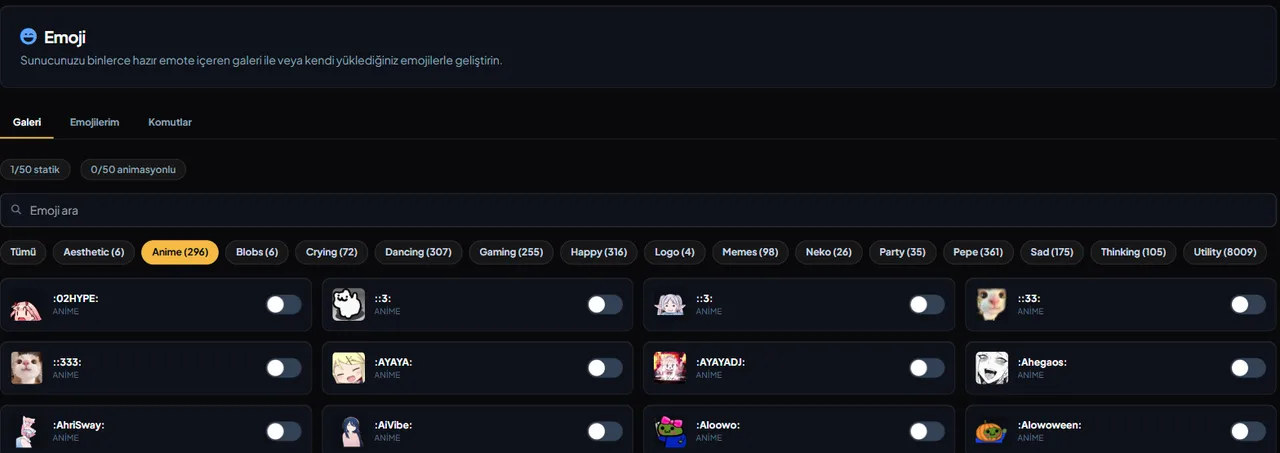
Ready-made emote gallery
The Gallery tab under Emoji in the dashboard searches ready-made emotes; clicking one you like adds it to your server as a server-specific emoji.
Copy from another server with /add_emoji
Paste any custom emoji you can see and give it a name (optional, up to 32 characters) to copy it into this server.
Upload your own file
Independent of the gallery or the command, you can also upload your own image file as a custom emoji directly from the dashboard.
Which permissions are needed?
Adding from the gallery and uploading a file happen in the dashboard; admins who can open the server's dashboard don't also need Manage Expressions. /add_emoji requires Discord's "Manage Expressions" permission; a member without it can't run the command. VeyroBot uploads the emoji either way, so the bot needs the "Create Expressions" permission on the server.
Who it’s for
Anyone who wants to quickly bring emotes popular in streaming communities to their server, or easily copy a custom emoji they saw on another server.
Who it’s not for
Not for anyone who wants to raise Discord's own server-level emoji limit — VeyroBot makes adding emojis easier, it doesn't raise the limit.
Setup in 3 steps
-
1
Add the bot to your server
Open the invite link above, pick your server and approve the permissions. The bot comes online within seconds.
-
2
Open the Emoji tab
In the dashboard, select your server and go to the Emoji tab; the Gallery sub-tab lets you search ready-made emotes.
-
3
Click, upload or copy with the command
Click an emote in the gallery, upload your own file, or copy an emoji from another server in Discord with /add_emoji — all three need the "Manage Guild Expressions" permission.
Related commands
For the full list of commands, see the commands page.
Step-by-step usage in the docs: Emoji Gallery
Sourced, dated comparisons with other bots: MEE6 and VeyroBot comparedDyno and VeyroBot comparedCarl-bot and VeyroBot comparedMEE6, Dyno and Carl-bot compared
Frequently asked questions
How many emojis can I add?
VeyroBot doesn't set its own limit; the one that applies is Discord's own emoji count limit based on your server's level.
Can I add animated emojis?
Yes, animated emotes from the gallery and ones copied with /add_emoji are both supported; Discord's own animated-emoji limit applies.
Can /add_emoji copy an emoji from any server?
Only one you yourself can see — the command reads the emoji exactly as you paste it and can't reach into a hidden server you don't have access to.
Adding it is all it takes to try
Add VeyroBot to your server and turn on the modules you want in the web dashboard. You can switch off anything you don't use.
Add to Server for Free