


Discord Server Analytics
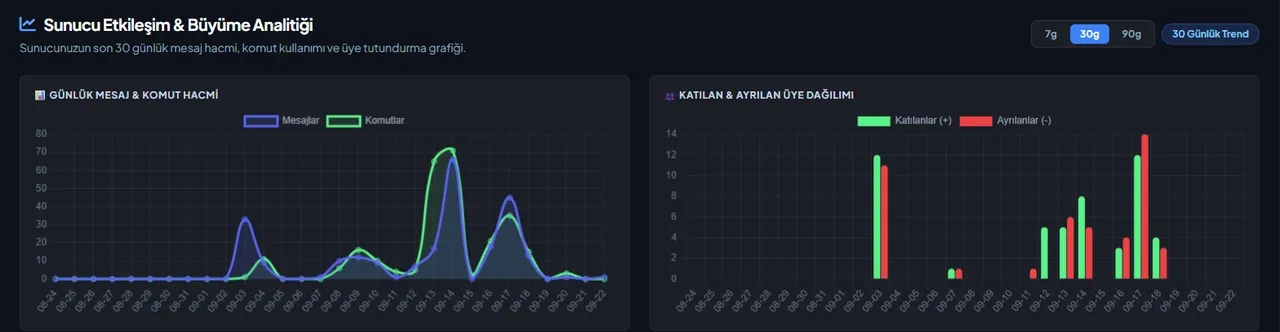
Measuring whether your server is actually growing, and when members are actually active, beats guessing. VeyroBot logs messages, commands and joins/leaves every day; the dashboard turns that into a heatmap, a list of the most active channels, daily voice minutes and a retention rate. On top of that, it can post a summary built from the same data to a channel you choose, daily, weekly or monthly.

Peak Hours heatmap
Shows which day and hour has the most messages, calculated in your server's own timezone — useful for timing events or announcements.
Most Active Channels and Daily Voice Minutes
Text channels are ranked by message traffic; total minutes spent in voice channels is tracked separately (the AFK channel and bots are excluded).
Member Breakdown and Retention
End-of-day totals track humans and bots separately; retention shows how many of the members who joined are still around (only calculated for periods that have actually finished, never an early guess).
Automatic summary reports
Daily, weekly and monthly reports switch on independently; each one posts message/command counts with a percent change from the previous period, net member change and, for weekly/monthly, the busiest day, as an embed in the channel you pick.
Who it’s for
Admins who want to measure whether their server is actually growing instead of guessing, and anyone who times events or announcements around peak hours.
Who it’s not for
Anyone looking for per-person, granular behavior tracking (who wrote what and when): this feature only keeps aggregate daily numbers, not individual member tracking.
Setup in 3 steps
-
1
Add the bot to your server
Open the invite link above, pick your server and approve the permissions. The bot comes online within seconds.
-
2
Open the Analytics tab
Pick your server in the dashboard and go to the Analytics tab. You'll see the heatmap, most active channels, voice minutes, member breakdown and retention cards here.
-
3
Pick a report channel and time (optional)
In the same tab, turn on whichever of the daily/weekly/monthly reports you want and choose the channel, send hour and timezone. The /setanalyticslog command sets the channel and turns on the weekly report (used without a channel, it turns off all three); the hour and timezone are chosen in the dashboard.
Related commands
For the full list of commands, see the commands page.
Step-by-step usage in the docs: Server Analytics & Report Notifications
Sourced, dated comparisons with other bots: MEE6 and VeyroBot comparedDyno and VeyroBot comparedCarl-bot and VeyroBot comparedMEE6, Dyno and Carl-bot compared
Frequently asked questions
What time does the report arrive?
You choose the send hour and your timezone in the dashboard's Analytics tab; the /setanalyticslog command doesn't change the hour: it sets the channel and turns on the weekly report, and used without a channel it turns off all three reports. The period a report covers (yesterday, last week, last month) is fixed to the calendar; only the hour it's sent that day follows your choice.
Do the dashboard cards and the Discord report use the same data?
Yes, both are built from the same daily records (`analytics_daily`); nothing is ever deleted — the dashboard's 7/30/90-day windows are just a display limit.
If there was no activity that period, does the report come back empty?
No — so it doesn't look like a glitch, the report states plainly that there was no activity in that period, instead of quietly showing a fake '0'.
Related articles
Adding it is all it takes to try
Add VeyroBot to your server and turn on the modules you want in the web dashboard. You can switch off anything you don't use.
Add to Server for Free