


Discord Invite Tracker
Discord doesn't tell you which link a member joined with, so you can't see which post worked or who really brings people in. VeyroBot tracks how many times each server invite has been used; when a member joins, it checks whose invite count went up, finds the invite and the inviter, and posts it to the channel you choose. Joins matched to a single invite go on the invite leaderboard.

A notice on every join
The channel you pick gets the invite code, the inviter, the invite's total uses and the member's account age. Joins through the server's vanity link are labeled as such, and a join whose source can't be found isn't skipped; it's reported as unknown.
Joined, left, stayed
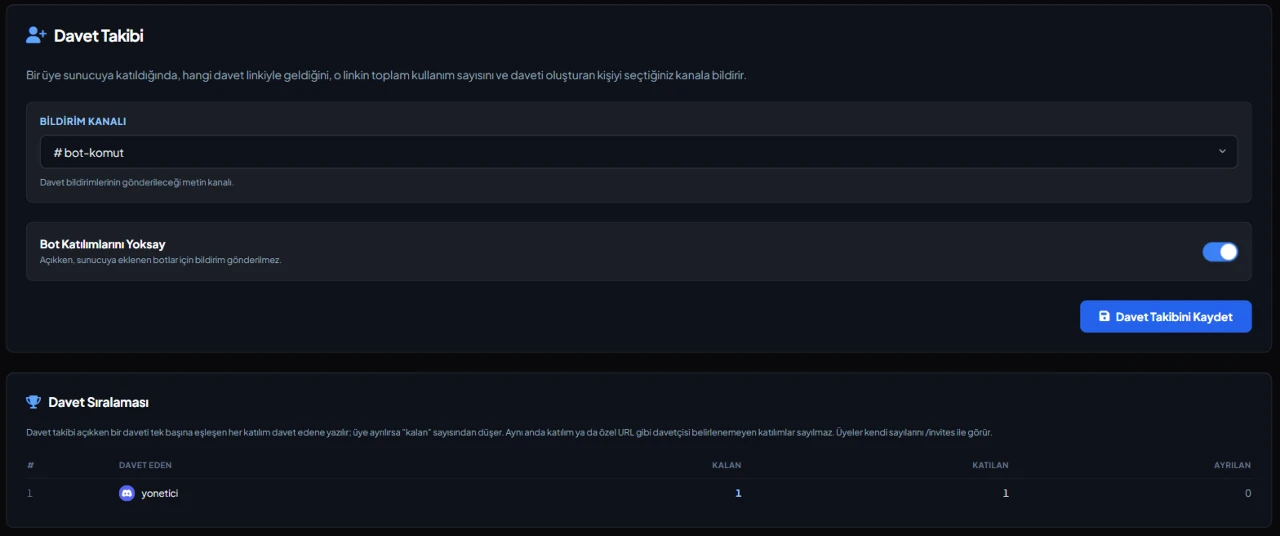
/invites shows three numbers for the people a member invited: joined, left and still in the server, plus their rank and the top 10. The Invite Tracker tab in the dashboard shows the top 25. Ranking is by how many invited members stayed.
Rules against inflated counts
Joining through your own invite doesn't count. A member who leaves drops out of the stayed count; if the same person rejoins, they aren't counted twice and go to the latest inviter. Bot joins are ignored by default, which you can change in the dashboard.
No guessing on unclear matches
If several invites go up at the same moment, the bot doesn't make up an inviter: the notice lists the possible invites and the join isn't added to the leaderboard. While an anti-raid lockdown is active, invite matching is skipped entirely.
Who it’s for
Growing communities that run invite contests, want to thank the people who bring members, or want to see which of the links they shared in different places actually brought people in.
Who it’s not for
On servers that get many joins at the same moment, matches are often unclear and the leaderboard will look incomplete. On servers that don't want to give the bot Manage Server, the feature doesn't work at all.
Setup in 3 steps
-
1
Add the bot to your server
Open the invite link above, pick your server and approve the permissions. The bot comes online within seconds.
-
2
Pick the notification channel
Dashboard → your server → Invite Tracker: choose the text channel for join notices and save, or use the /setinvitelog command. Tracking starts once a channel is set; without one, joins aren't counted.
-
3
Give the bot Manage Server and test it
In Server Settings → Roles, give the VeyroBot role the Manage Server permission. Then create a new invite link, join with a test account and check that the notice arrives in the channel.
Related commands
For the full list of commands, see the commands page.
Step-by-step usage in the docs: Invite Tracker
Sourced, dated comparisons with other bots: MEE6 and VeyroBot comparedDyno and VeyroBot comparedCarl-bot and VeyroBot comparedTatsu and VeyroBot comparedBetterAntispam and VeyroBot comparedMEE6, Dyno and Carl-bot compared
Frequently asked questions
Are invites from before VeyroBot joined counted?
No. The leaderboard only includes joins matched while invite tracking was on; no history is pulled in. The link uses figure in /invites is Discord's own counter, so it does include older uses.
What permission does the bot need?
Manage Server. Discord only gives the invite list to a bot with this permission. Without it tracking doesn't work; the bot says so in the notification channel at most once an hour, and the dashboard shows a warning too.
Does it give a role when someone reaches a number of invites?
Yes, through the Achievements module. The built-in invite achievement tracks invite counts; you set the tier thresholds (3, 10, 25 and 100 by default) and the role given at each tier in the dashboard's Achievements tab, and the role is permanent. For a one-off invite contest, give the prize by hand using the leaderboard.
Related articles
Adding it is all it takes to try
Add VeyroBot to your server and turn on the modules you want in the web dashboard. You can switch off anything you don't use.
Add to Server for Free