


Discord Podcast Notifications
If your community follows a podcast together, announcing every new episode by hand gets forgotten or arrives late. VeyroBot reads the podcast's public RSS feed every minute; when a new episode appears, it posts an embed with the episode title, summary, cover art and duration to the Discord channel you chose, and can mention a role. No API key and no platform account are needed.

Podcast feed URL
Enter the podcast's public RSS feed address (most podcast hosts give you this directly). You need the feed itself, not an Apple Podcasts or Spotify link.
Episode title, summary, cover art and duration
The notification card automatically reads the episode duration, cover art and summary from the feed's iTunes/podcast tags — no manual entry needed.
Checked every minute, posted in order
The feed is read every 60 seconds. If several new episodes appear in the same check, they're posted oldest to newest (up to 3 per round); the rest follow on the next round.
Role mention or your own text
The default notification can mention a role. If you write your own text (up to 1,000 characters), it replaces the default; {streamer} becomes the podcast name, {url} the episode link and {title} the episode title.
Who it’s for
Servers following one or a few podcasts together, and podcast creators tired of announcing every new episode by hand.
Who it’s not for
Not needed for those who just listen via Spotify/Apple Podcasts and rely on those platforms' own notifications — either way, what VeyroBot reads is the podcast's public RSS feed, not a platform account.
Setup in 3 steps
-
1
Add the bot to your server
Open the invite link above, pick your server and approve the permissions. The bot comes online within seconds.
-
2
Add the podcast feed
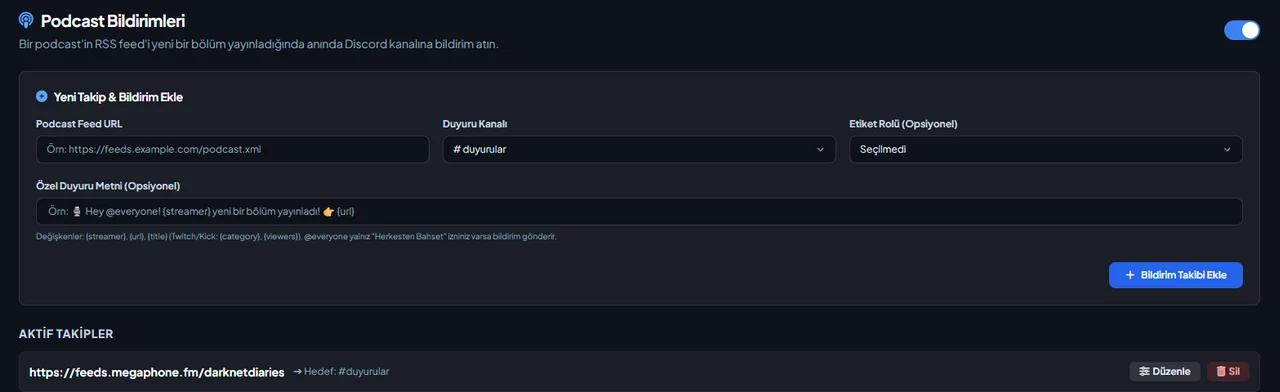
Dashboard → your server → Podcast Notifications: enter the podcast's RSS feed address, pick the announcement channel and an optional role, then press Add Notification Follow. The /streamalert add command does the same and requires Manage Server.
-
3
Check the permission and wait
The bot needs permission to send messages in the announcement channel. The first check runs within a minute; a notification lands when a new episode is released (existing episodes aren't shared when you first add it).
Related commands
For the full list of commands, see the commands page.
Step-by-step usage in the docs: Streamer & Content Alerts (7 Platforms)
Sourced, dated comparisons with other bots: MEE6 and VeyroBot comparedDyno and VeyroBot comparedCarl-bot and VeyroBot comparedMEE6, Dyno and Carl-bot compared
Frequently asked questions
Are duration and cover art always shown?
Only if the feed carries that data. Most podcast hosts provide both; if a feed doesn't include them, the card arrives with just the title and summary.
Is an old episode shared when I add the podcast?
No. When a new follow is added, the episodes already in the feed are only marked as seen, none are announced. Only episodes released after the follow was added reach Discord.
How many podcasts can I follow?
Up to 25 podcast follows per server. The same feed can't be added twice to the same Discord channel, but it can be added to a different one.
Related articles
Adding it is all it takes to try
Add VeyroBot to your server and turn on the modules you want in the web dashboard. You can switch off anything you don't use.
Add to Server for Free