


Discord Embed Builder
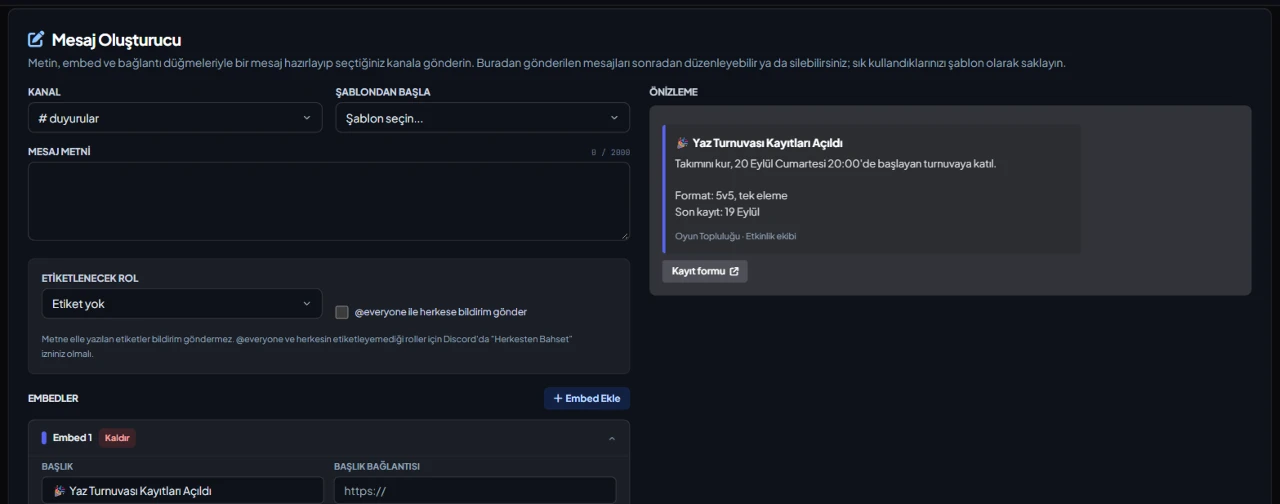
Making an embed for rules, announcements or a role guide usually means writing JSON or using a separate tool, and fixing a typo after it's posted is awkward. In VeyroBot's Message Builder tab you fill in the message field by field, check it in a preview that looks like Discord and send it to the channel you pick. Messages sent from here are saved, so you can edit them later.

Discord embed builder
Build your Discord message here: text, embeds, fields, images and link buttons. The preview is drawn close to how the message looks in Discord and counts the limit of every field. No account needed; your message stays only in this browser.
Preview
Send with VeyroBot. VeyroBot sends the message to your server, so you don't need a webhook URL. Log in with Discord and pick your server; the draft opens in the Message Builder in the dashboard. Choose a channel and send it, and edit it later from the dashboard.
The link carries the whole message inside the address. That part is never sent to our server; anyone who gets the link can see the message.
Limits
| Field | Maximum |
|---|---|
| Message text | 2,000 characters |
| Embeds per message | 10 |
| Embed title · author name | 256 characters |
| Embed description | 4,096 characters |
| Number of fields | 25 (per embed) |
| Field name · field value | 256 · 1,024 characters |
| Footer | 2,048 characters |
| Text of all embeds | 6,000 characters in total |
| Link buttons · label | 5 · 80 characters |
10 embeds, 5 link buttons
Message text (2000 characters), up to 10 embeds and 5 buttons with https links. Each embed has a title and title link, description, color, author, thumbnail and image, footer, send time and up to 25 fields; the limits are Discord's own.
Edit or delete after sending
Messages sent from this tab stay in a list. Edit writes your changes to the message in Discord, Delete removes it from Discord too, and Open a Copy starts a new message with the same content.
Safe mention rules
You can pick one role, and @everyone is added with a separate switch. For @everyone and roles that not everyone can mention, the person using the dashboard needs the Mention Everyone permission in Discord. Mentions typed into the text don't notify anyone.
Templates and image uploads
Save messages you reuse as templates for your server (up to 100) and start from one later. Image fields take an https address, or you can upload a PNG, JPEG or WEBP file up to 3 MB; uploads are resized and stored as WEBP.
Who it’s for
Admins who want neat-looking messages such as rules, announcements, role guides or link lists without writing code, and who want to keep them up to date later.
Who it’s not for
Not for recurring messages or buttons that give a role when clicked: this tab sends a message once and only adds link buttons. Timed messages and reaction roles are separate features for that.
Setup in 3 steps
-
1
Add the bot to your server
Open the invite link above, pick your server and approve the permissions. The bot comes online within seconds.
-
2
Build the message
Dashboard → your server → Message Builder: choose the channel, then fill in the text, embeds and link buttons, or start from a saved template. Every change shows up in the preview right away.
-
3
Send it and fix it if needed
Press Send; the message is added to the Sent messages list. To change it later, use Edit and press Save Changes. The channel must be a text or announcement channel.
Related commands
For the full list of commands, see the commands page.
Step-by-step usage in the docs: Message Builder
Sourced, dated comparisons with other bots: MEE6 and VeyroBot comparedDyno and VeyroBot comparedCarl-bot and VeyroBot comparedTatsu and VeyroBot comparedBetterAntispam and VeyroBot comparedMEE6, Dyno and Carl-bot compared
Frequently asked questions
Does the Message Builder have a command in Discord?
No. Messages are only created, sent and edited in the Message Builder tab of the dashboard; there is no slash command for it.
Can I edit a message that was sent some other way?
No. Only messages sent and saved from this tab can be edited; messages typed by hand or sent by other bot features aren't touched. If a message was deleted in Discord, its entry is removed from the list.
Is the message sent from my account?
No. VeyroBot sends the message to the text or announcement channel you choose. The bot needs permission to send messages and embed links in that channel.
What is an embed?
A card attached to a Discord message. It can have a colored side strip, a title, a description, fields, an image and a footer. A message can hold up to 10 embeds.
What's the difference between sending with a webhook and with VeyroBot?
A webhook drops a message into a channel, but you have to keep its URL, and a webhook created in the server settings can't send interactive buttons. VeyroBot sends the message under its own name, and you edit it later from the Message Builder in the dashboard.
Why doesn't a link or mention in the title work?
Discord only shows mentions and [text](link) links in the description and field values. To make the title clickable, use the Title link field.
How do I add a timestamp?
Write it as <t:1760000000:F>; the number is Unix time in seconds. Everyone reading the message sees the time in their own time zone. The letter at the end picks the format: R is relative time such as "3 hours ago", F is the full date and time.
Where is my message saved?
Only in this browser. The share link carries the message in the part of the address after the # sign; browsers don't send that part to the server.
Can I add a button that gives a role?
This tool adds link buttons. For buttons members click to get a role, use VeyroBot's Reaction Roles feature.
Related articles
Adding it is all it takes to try
Add VeyroBot to your server and turn on the modules you want in the web dashboard. You can switch off anything you don't use.
Add to Server for Free