How to Set Up Discord Log Channels and Warning System
Channel layout for six log types, warning flow with /warn, gradual punishment thresholds, and case history: set up moderation records step by step from the dashboard, learn why logs do not appear and what clearing warnings changes.
This article was translated automatically from the Turkish original. Read the Turkish original

In this article
- Modules, channel permissions and command permissions
- Step 1: Determine the channel layout
- Step 2: Select log channels
- Step 3: Issuing a warning
- Setting up warning tiers
- Checking history: which tool when?
- If logs do not arrive or show up empty
- Does a small server need six log channels?
- Frequently asked questions
In short
A log channel is a record of what happens in the server; a warning system counts how many times a member has been intervened with. In VeyroBot, log channels are selected from the Audit Logs tab of the dashboard, warnings are given via the /warn command or the Web Moderation tab, and each action falls into the moderation log channel as a numbered case.
We will set up the channels first, then the warning flow, and finally the case history.
Modules, channel permissions and command permissions
- Two modules must be enabled. If the Module status toggle at the top of the Audit Logs tab is disabled, no logs—including moderation logs—will be sent. The Moderation module must also be enabled for
/warnand other punishment commands. - The bot must have permission to write to log channels. In every log channel, the bot must have the permission to view the channel, send messages, and embed links.
- Log channels must be hidden from staff. Message logs show the content of deleted messages. Turn off @everyone's permission to view these channels.
- Permissions must be distributed correctly. You need Manage Server for
/setlog; Manage Messages for/warn,/warnings,/note, and/reason; and permission to timeout members for/case-history.
This topic in VeyroBot:Discord Moderation Bot →
Step 1: Determine the channel layout
There are six log types, and each goes only to its own channel. A type with no channel selected is disabled.
| Moderation Log Channel | Punishments, warnings, notes, message purging, channel locking, AutoMod and tier punishments, raid alerts. Make sure to select this. |
| Message Edit & Delete Log Channel | Deleted, edited, and bulk-deleted messages. This is the busiest type. |
| Voice Channels Log Channel | Joining, leaving, and switching voice channels. |
| Member Join & Leave Log Channel | Account age and whether joined members are bots; time spent on the server for those who leave. |
| Server & Role Changes Log Channel | Channel, role, permission, invite, emoji, and server setting changes, bans. |
| Member Edit Log Channel | Nickname, role, mute, boost, and profile changes. |
Two channels are enough for a small server: one for moderation, one for everything else; the same channel can be selected for multiple types. As the team grows, separating message logs prevents moderation records from getting lost in the noise.
Step 2: Select log channels
- Open the Dashboard → your server → Audit Logs tab; check that the Module status toggle is on.
- Select a channel for each type you will use. Only text channels appear in the list.
- In the Ignored in Message Logs section, add noisy channels like bot command channels and staff roles.
- Click Save Log Channels.
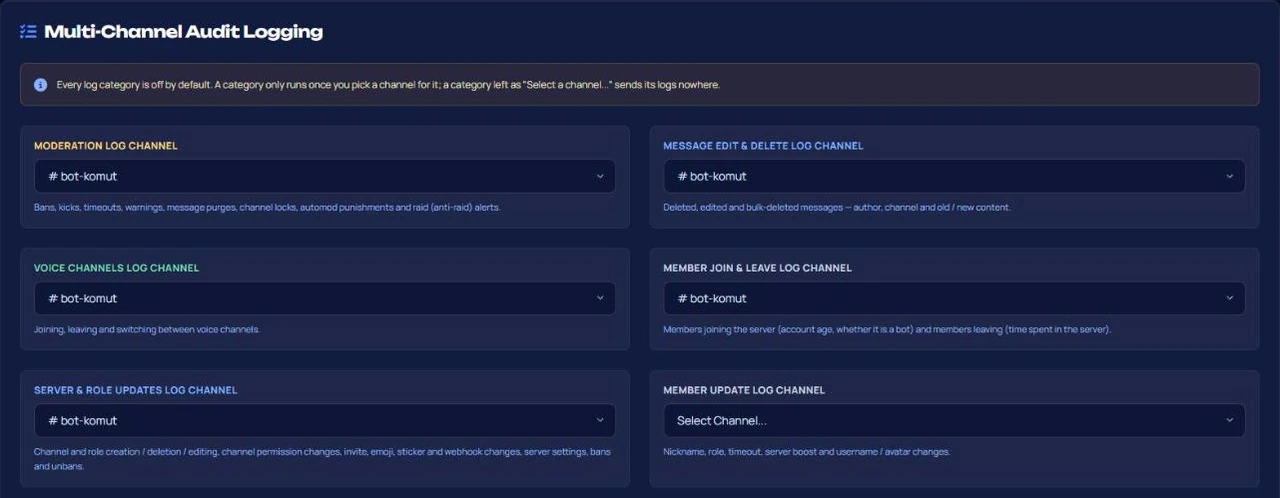
The command is enough to select only the moderation channel: /setlog channel:#mod-log. If you run it without specifying a channel, the moderation log turns off. The other five types are selected exclusively from the dashboard.
Step 3: Issuing a warning
/warn target:@member reason:reason warns a member. Use the /warn command. Three things happen with every warning:
- The warning is added to the member's counter, and the response shows the total warning count.
- A numbered case is opened and sent to the moderation log channel.
- If the counter reaches a tier threshold, an automatic punishment is applied.
Rules: you cannot warn yourself or bots; unless you are the server owner, you cannot warn a member who has a role equal to or higher than your highest role. No direct message is sent to the warned member. If the member needs to know the reason, message them separately.
The same action is performed in the dashboard under the Web Moderation tab using the user ID: select Warn as the action. Warnings given from the dashboard are also written to the same counter and tier.
Setting up warning tiers
Tiers are located in the Advanced AutoMod → Gradual Punishment System section. Two thresholds and an action for each are selected: warning only, 1 hour or 1 day mute, kick, or ban. Default: 1-hour mute at 3 warnings, kick at 5 warnings.
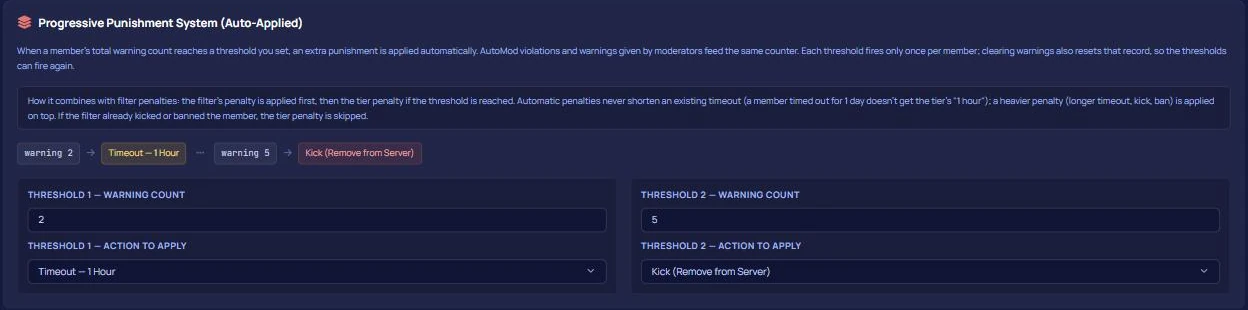
- Manually given warnings and AutoMod violations are written to the same counter. Even if the AutoMod module is disabled, manual warnings trigger tiers.
- Each threshold is applied to a member once; punishments are not repeated as the counter goes above the threshold.
/warnings target:@member clear:Trueor Clear Warnings in Web Moderation resets the tier record along with the counter. If a cleared member reaches the threshold again, the tier is applied once more.
Threshold selection, how they work together with filter punishments, and the impact of false positives are detailed in the AutoMod setup guide.
Checking history: which tool when?
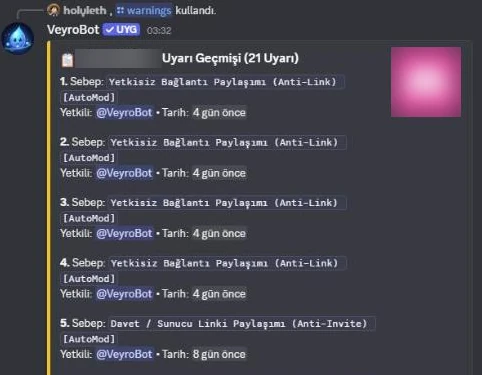
/warnings | Lists only warnings. Use to see how close someone is to a tier. |
/case-history | Shows all bans, kicks, mutes, warnings, and notes of a member with pagination. Check here before issuing a punishment. The dashboard's Web Moderation tab also lists the last 50 cases. |
/note | Adds a note that does not count as a punishment (maximum 500 characters). It does not enter the warning counter or trigger tiers; it is written to case history and the moderation log. |
/reason | Corrects the justification of a case. It does not open a new case; the old justification is written to the log channel. This requires the permission of the action that opened the case. |
If logs do not arrive or show up empty
- Leaving the module disabled and selecting channels. Channels appear saved, but no logs go through. Check the Module status toggle first.
- The bot not being able to write to the log channel. No error message appears if logs cannot be sent. The Health card in the dashboard's Overview shows log channels that the bot cannot write to or that have been deleted.
- Expecting the content of an old deleted message. Discord does not send the text of deleted messages to bots; the bot can only display content from its own cache. If a message written before the bot started is deleted, the log falls without content.
- Not knowing the consequence of clearing warnings. Clearing also resets the tier record; if you clear the warnings of a member who was kicked and returned, tiers will apply from the beginning.
Does a small server need six log channels?
Suitable for: servers with multiple moderators, where decisions might be questioned later and rules need to be enforced gradually. If your rules are not written yet, check the server rules guide first.
Not suitable for: servers managed by a single person, consisting of a few friends. There, six log channels are nothing more than noise; a moderation channel alone is enough.
Frequently asked questions
Do warnings delete themselves after a certain time?
No. Warnings stay in the counter until you clear them.
What happens if a tier punishment cannot be applied?
If the bot cannot mute or kick the member—for example, if the member's role is above the bot's—the tier is still recorded and the log channel states that the action could not be applied.
Are warnings recorded if I turn off the moderation log channel?
Yes. The warning counter and case record are kept independently of the log channel; only the log message is not sent.
I don't want to see staff messages in the message log. Add staff roles to the role list in the Ignored in Message Logs section. This only affects message logs; staff moderation actions are still recorded.
For a general introduction to the feature, check the Discord moderation bot page; for all settings, check the audit logs and moderation docs; for command details, check the setlog, warn, and vaka-gecmisi cards.
Last updated: September 17, 2026. Log types, warning rules, and tier behaviors in this article have been verified against the log dispatcher, warning commands, and gradual punishment engine in VeyroBot's current version.
For these topics in VeyroBot
Discord Moderation Bot
Ban, kick, time out and warn: every action is saved as a numbered case and posted to your mod-log. Warning tiers and six separate log channels.
Discord AutoMod and Automatic Moderation
Profanity, spam, advertising and mass-mention filters; tiered punishments and one shared case history. Protect your server automatically with VeyroBot.