How to Set Up Discord AutoMod: Filters, Punishments, and Tiers
AutoMod runs the moment a message is sent with ten filters: invite, link, spam, caps, mass mention, duplicate message, emoji, line spam, blocked word, and regex. Setup steps, default values, tiered punishments, and common mistakes.
This article was translated automatically from the Turkish original. Read the Turkish original
In this article
In Short
AutoMod is a rule-based filter layer that runs the moment a message is sent: invite links, links, spam, caps, mass mentions, duplicate messages, emojis, line spam, blocked words you specify (with * wildcards at the start or end), and regex patterns. Setup is done via the dashboard: enable the module, select the filters you want to use, set the punishment for each filter, and configure tiered punishments.
Filters only apply to non-staff members. Members with Manage Messages or Administrator permissions are exempt from AutoMod; therefore, testing the settings with your own account will be misleading.
The difference between AutoMod and moderation commands
The two perform different tasks and are used together.
| AutoMod | Moderation commands | |
|---|---|---|
| When it runs | The moment a message is sent, automatically | When a staff member runs a command |
| What it checks | Rules you write (words, links, duplicates, ratios) | Staff decision |
| Typical task | Ad and spam cleanup | Individual incidents, appeals, history |
| Logging | Sent to the moderation log channel | Logged to the user's history with a case number |
AutoMod does not replace human judgment; it handles repetitive tasks for staff. For everything else, moderation commands take over.
This topic in VeyroBot:Discord AutoMod and Automatic Moderation →
Filters and their default behaviors
| Filter | What it catches | Default |
|---|---|---|
| Invite link | Invite links to other servers | Delete + warn |
| Link | All links not on the whitelist | Delete + warn · list: youtube.com, youtu.be, spotify.com, tenor.com, giphy.com |
| Spam | Messages repeated in a short period | Threshold 5 messages · delete + mute |
| Caps | Percentage of capital letters in a message | Over 70% · delete + warn |
| Mass mention | Too many mentions in a single message | Over 4 mentions · delete + mute |
| Blocked word | Words on your list; * wildcard can be added to the start or end (*ad) | Delete + warn |
| Regex pattern | Regular expressions you write (max 10; runs in Discord's native AutoMod) | Delete + warn |
| Duplicate message | Sending the same text repeatedly | On 3rd duplicate · delete + 5-minute mute |
| Emoji spam | Too many emojis in a single message | Over 10 emojis · delete + warn |
| Line spam | Messages split across too many lines | Over 15 lines · delete + warn |
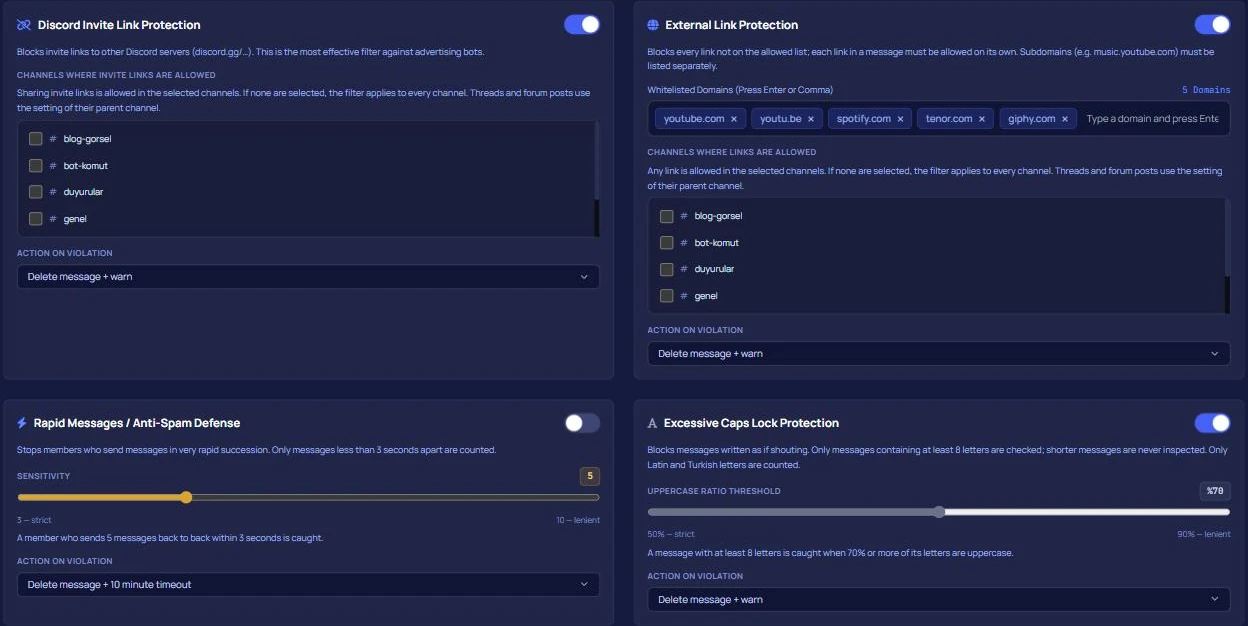
The punishment for each filter is selected individually: delete and warn, delete and mute (5 minutes, 10 minutes, 1 hour, 1 day), delete and kick, delete and ban. In the link filter, the whitelist checks the actual domain name of the link in the message; trying to trick the filter by just writing a domain name in the text will not work.
Step-by-step setup
- Enable the module. Dashboard → your server → Advanced AutoMod. No filters will run while the module is disabled.
- Select filters. On a new server, starting with invite links, spam, and mass mentions is usually enough; if you enable the link filter, customize the whitelist for your server. If you have a self-promotion or sharing channel, select "allowed channels" separately for invite links and links; the respective filter will not run in those channels but will continue to work in others.
- Choose a punishment. Start with "delete + warn" for the first week; switch to muting after seeing how often each rule is triggered.
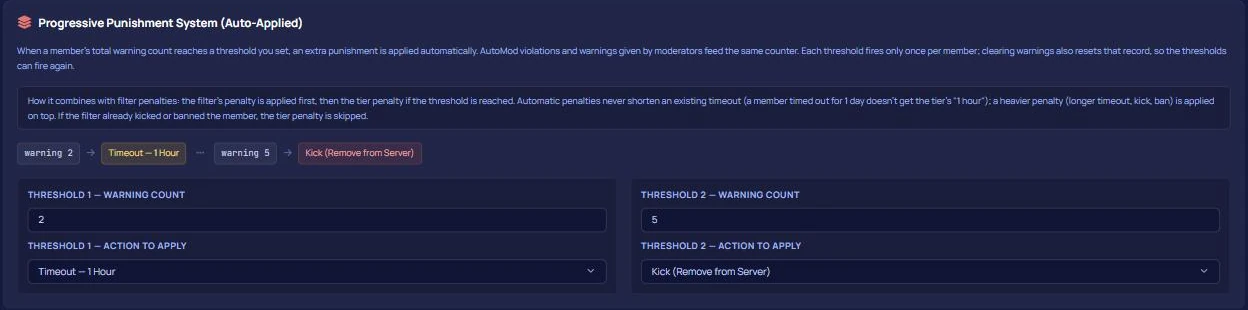
- Configure tiered punishments. Default: 1-hour mute at 3 warnings, kick from server at 5 warnings. You can customize these numbers and actions yourself.
- Connect the log channel. If a moderation log channel is not selected, violations will not be logged; you won't be able to answer "why was this deleted" questions later.
How do tiered punishments work?
Every violation counts as a warning. When a member reaches the number of warnings you specify, the selected action is automatically applied. Important detail: manual warnings also count toward the same limit. When a staff member issues a warning using /warn, the tier can be triggered even if AutoMod was never involved.
If the filter is not working or deleting too much
1. Testing with your own account. Since staff accounts are exempt, it might seem like the filter isn't working. Use a non-staff account or a role without permissions temporarily for testing.
2. Enabling the link filter without a whitelist. Every shared link will be deleted, and the community will quickly complain. First, list the allowed domains; if there is a channel where link sharing is normal, add it to the "allowed channels for links" list.
3. Choosing harsh punishments from day one. A newly set up filter might catch unexpected messages. Starting with warnings allows you to spot false positives without punishing users.
What can't AutoMod catch?
Suitable for: public servers receiving ads and spam, communities wanting to limit invite link sharing, and growing servers with few staff members.
Not suitable for: moderating discussions that require context. A rule-based filter cannot read intent; it shouldn't be expected to distinguish between a sarcastic message and a genuine insult. That task remains with the staff.
Frequently asked questions
Are staff affected when AutoMod is enabled?
No. Members with Manage Messages or Administrator permissions are exempt from filters.
Can it be used alongside Discord's native AutoMod?
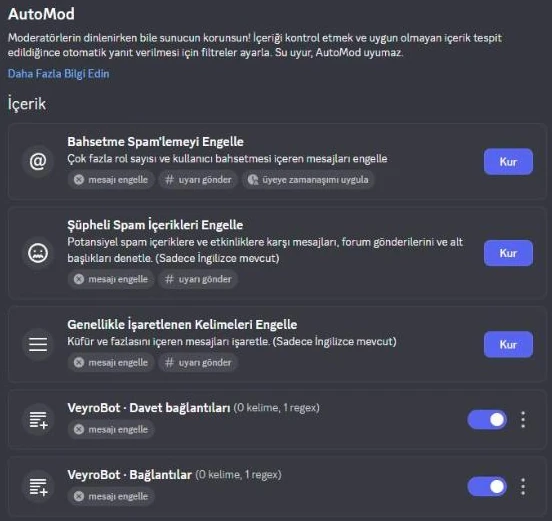
VeyroBot creates rules named "VeyroBot · ..." in Discord's native AutoMod for blocked words, regex, invites, links, and mass mention filters, syncing them with the dashboard settings. Do not enable a separate Discord AutoMod rule that does the same job; otherwise, the same message will trigger both rules.
Can I restore a message that was falsely flagged?
No, deleted messages cannot be restored. If you see a false positive, update the filter threshold or whitelist; you can also remove the warning from the member's history.
Can I allow invite links in only one channel?
Yes. Sharing invites is allowed in channels you add to the "allowed channels" list in the invite link filter, while the filter remains active in other channels. The link filter list is separate; a channel added to one is not automatically allowed in the other. Threads and forum posts inherit the settings of their parent channel, and edited messages are checked using the same rules.
What should the spam threshold be?
The default of 5 messages is suitable for most servers. It makes sense to raise it in fast-paced chat communities and lower it in quiet servers.
Do warnings count when filters are disabled?
Yes. Tiered punishments look at the number of warnings; it doesn't matter whether the warning was issued by AutoMod or manually.
Last updated: September 15, 2026. The default values described are the current settings on the VeyroBot dashboard. To review your role and permission setup, see the role and permission system reference, and to set up raid protection, see the anti-raid guide.
<<