How to Set Up a Discord Ticket System: Buttons, Private Channels, and Transcripts
Stop support requests from getting lost in DMs: a private channel opened with a button, visible only to the user and support role, with a .txt transcript sent to the log channel upon closing. Learn how to set it up from the dashboard in five minutes, choose staff roles, and manage closing permissions.
This article was translated automatically from the Turkish original. Read the Turkish original

In this article
In Short
A ticket system on Discord allows a member to click a button and open a private channel visible only to themselves and the support team. Once the conversation is over, the channel is closed, and its transcript is sent to a log channel. In VeyroBot, this workflow is set up from the dashboard with just three selections: the category where support rooms will be grouped, the support staff role, and the log channel for transcripts. Then, the panel is sent to a channel; a member clicks the button, a channel named bilet-kullaniciadi is opened, and the support role is tagged. Each member can only have one open ticket at a time.
What does a ticket system solve?
- Ends the clutter. Requests like "Can you unban me?" or "I have a payment issue" won't get lost in moderators' DMs; every request stays in its own channel with its history.
- Provides privacy. The channel is visible only to the ticket creator, the support role, and the bot; other members won't even see that the channel exists.
- Keeps records. Upon closing, the entire conversation is sent to the log channel as a .txt file and an .html file that opens in a browser; this puts an end to "we never said that" disputes.
This topic in VeyroBot:Discord Support Ticket System →
Three settings on the dashboard
| Setting | What it does | If left blank |
|---|---|---|
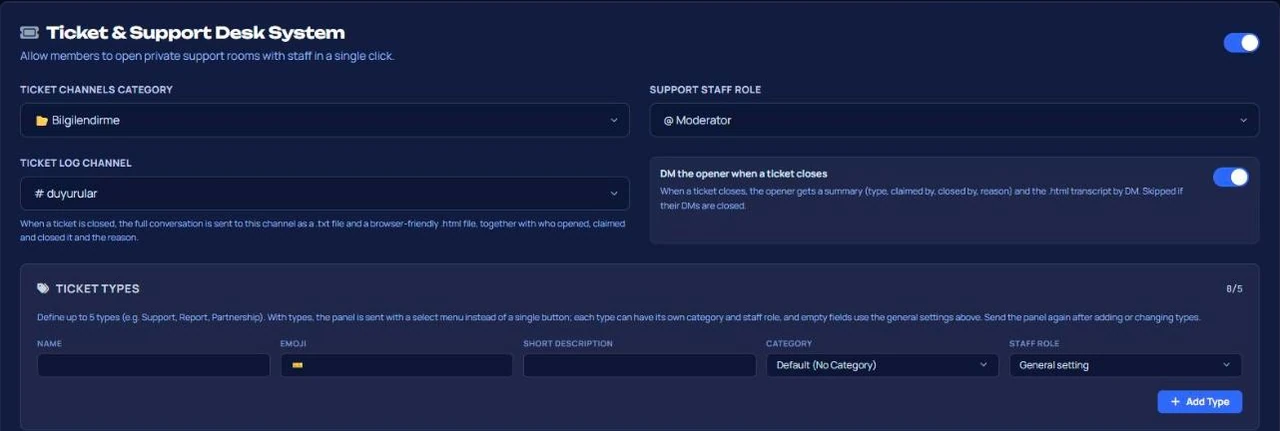
| Support rooms category | Every opened ticket channel goes under this category, keeping the channel list organized. | The channel is opened without a category and stays at the very top of the list. |
| Support staff role | The role that can view and write in the ticket; tagged when a ticket is opened; can close the ticket. | Only the ticket creator and those with Administrator permissions can view the ticket; no one is tagged. |
| Ticket log channel | When a ticket is closed, a summary (ticket, type, opened by, claimed by, closed by, reason, message count) along with .txt and .html transcripts are sent here. | No transcript is generated; the conversation is lost when the channel is deleted. |
Step-by-step setup
- Create a category. Create an empty category named "Support" on Discord; you don't need to touch its permissions, as the bot configures the permissions for each ticket channel itself.
- Select the three settings on the dashboard. Dashboard → Support Tickets: select the category, support staff role, and ticket log channel. Save changes.
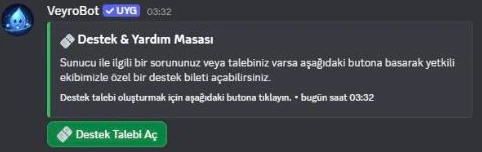
- Send the button panel. From the same tab, enter the target channel, panel title, and description, then click "Send Support Panel to Server". If you prefer using a command,
/ticket-paneldoes the same job (requires "Manage Channels" permission; offers channel, staff role, title, and description options). - Test it with your own account. Click the button; a
bilet-…channel should open, and the support role should be tagged. Click the close button, optionally type a reason in the pop-up window; the channel should be deleted within 5 seconds, and the transcript should be sent to the log channel. - Check the Health Score. The card in the Overview will show "Settings linked to deleted channel" if the ticket category or log channel is deleted later; the system won't break silently.
Who can do what?
- Opening a ticket: any member; only one open ticket at a time. If they click a second time, their existing ticket is shown.
- Writing and adding files in a ticket: the ticket creator and the support role.
- Claiming: the support role, or anyone with "Manage Channels" or "Administrator" permissions; using the Claim button in the ticket channel. Only one person can claim a ticket at a time.
- Adding another member to the ticket: the support team can add them using
/ticket-addand remove them using/ticket-removein the ticket channel. - Closing: the ticket creator, the support role, anyone with "Manage Channels" or "Administrator" permissions, and the server owner. If anyone else tries to close it, they will receive an ephemeral warning visible only to them.
Three mistakes in log, support role, and category permissions
- Not selecting a log channel. There will be no transcript for closed tickets; no evidence remains if a dispute arises.
- Not selecting a support role. The ticket opens, but no one is tagged; the request sits there unnoticed.
- Hiding the ticket channel while trying to hide the category from everyone. No need: the bot writes channel permissions specifically for the member and the support role, so category permissions won't override them.
Ticket or application form?
Suitable for:
- Servers that want to prevent members from DMing moderators and keep requests organized under a single role and category.
- Gaming and roleplay communities that want to handle processes like whitelist applications, purchase support, and rule appeals with written records.
Not suitable for:
- Those who want to open tickets with a Q&A form: VeyroBot does not have a questionnaire at ticket opening; ask the member to write the required information in their first message. For processes requiring Q&A, such as staff or whitelist applications, use Application Forms instead of tickets.
- Those who handle their support workflow outside of Discord (email, forms); a ticket system would just be an extra channel.
Frequently asked questions
How many tickets can a member open at the same time?
One. If they click the button while they have an open ticket, the existing channel is shown; they can open a new ticket after it is closed.
What happens when a ticket channel is closed?
If a log channel is selected, the summary along with the .txt and .html transcripts are sent there first, and then the channel is deleted within 5 seconds. If the setting is enabled, the summary and .html transcript are also sent to the ticket creator via DM. If no log channel is selected, the transcript will not be sent to the log channel.
Can I create separate ticket types for different topics?
Yes. You can define up to 5 types (e.g., Support, Complaint, Partnership) from the Support Tickets tab; each type can have its own category and staff role. If types are defined, the panel is sent with a selection menu instead of a single button; make sure to resend the panel after adding types.
Can I change the title and description of the panel?
Yes, both from the dashboard and through the options of the /ticket-panel command. The welcome message sent to the ticket channel is fixed and matches the server's language.
Will open tickets be affected if I change the support role later?
The channel permissions of open tickets are set based on the role at the moment they were opened; the new role will apply to new tickets. Closing old tickets and reopening them is the cleanest way.
Does opening a ticket count as an achievement?
Yes; if achievements are enabled on the server, progress for "opened tickets" is tracked. Details are in the documentation.
Last updated: September 19, 2026. The described behaviors belong to the version of VeyroBot on that date; for details, see the support ticket features page and the documentation. Plan details are on the premium page.
For these topics in VeyroBot
Discord Support Ticket System
Support tickets opened with a button, a staff role, private channels under a category and ticket logs. Set it up with VeyroBot in a few minutes.
Discord Application Form
Collect staff and team applications inside Discord: forms of up to 15 questions, a review channel with Accept/Reject buttons, a role on accept and a DM.