Discord Server Security Audit: 12 Checks
The security of a Discord server depends on a few settings. From @everyone permissions to staff account protection, here are 12 checks and where to find them in Discord.
This article was translated automatically from the Turkish original. Read the Turkish original
In this article
At a glance
The security of a Discord server depends on a few key settings: @everyone role permissions, verification level, two-factor authentication for moderation, who has Administrator permissions, and whether you get notified when something happens. The 12 checks below take about 15 minutes, and each one explains where to look in Discord.
Order matters. The first four checks determine what anyone can do the moment they join the server; the subsequent ones determine how severe the damage will be if a staff account is compromised.
12 checks in a single table
| # | Check | Where to look | If left open |
|---|---|---|---|
| 1 | No dangerous permissions on @everyone | Server Settings → Roles → @everyone | Any new joiner can delete channels or assign roles |
| 2 | Verification level is at least Medium | Server Settings → Safety Setup | Newly created accounts can chat instantly |
| 3 | 2FA required for moderation | Server Settings → Safety Setup | A compromised staff account is used with full authority |
| 4 | Explicit content filter enabled | Server Settings → Safety Setup | Inappropriate images are shown unfiltered |
| 5 | Administrator permission given to few people | Server Settings → Roles | A single account can delete the entire server |
| 6 | No unnecessary bots have Administrator | Server Settings → Roles (bot roles) | If a bot token leaks, the server is compromised |
| 7 | Bot and staff role hierarchy is correct | Server Settings → Roles | The protection bot cannot take action against an attacker |
| 8 | No unrecognized webhooks | Server Settings → Integrations | Spam tagged with @everyone sent via webhook |
| 9 | Moderation log channel exists | Bot panel or settings command | You cannot review events afterwards |
| 10 | Spam and invite link rules are active | Discord AutoMod or bot's AutoMod | Ads and spam must be cleaned manually |
| 11 | Protection against mass joins | Anti-raid settings | Hundreds of accounts flood channels simultaneously |
| 12 | Staff account protection and recovery plan | Anti-nuke settings | Deleted channels and roles cannot be recovered |
This topic in VeyroBot:Discord Anti-Nuke Bot →
1–4: Settings that concern everyone joining the server
1. @everyone permissions. This role applies to everyone in the server. If permissions like Administrator, Manage Server, Manage Roles, Manage Channels, Ban Members, or Manage Webhooks are enabled here, any newly joined account can use them. These must be disabled in the @everyone role. It is also recommended to turn off the Mention @everyone permission.
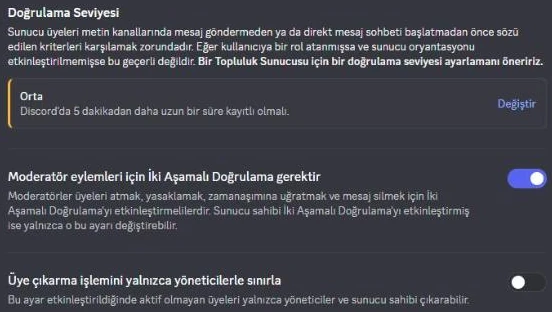
2. Verification level. At the "None" level, even an account with an unverified email can start chatting immediately. The "Medium" level requires accounts to be registered on Discord for at least 5 minutes, stopping most short-lived spam accounts. For large public servers, "High" is more appropriate.
3. Two-factor authentication for moderation. When this setting is enabled, accounts without two-factor authentication cannot perform moderation actions such as kicking, banning, or deleting messages. Even if a staff member's password is stolen, these actions are blocked unless the attacker passes the second step. Only the server owner can change this setting, and two-factor authentication must also be enabled on the owner's own account.
4. Explicit content filter. Discord automatically scans inappropriate images with this filter. Having the filter turned off is not an attack vulnerability by itself, but keeping it enabled is recommended for community safety.
5–8: Who holds the authority
5. Number of Administrators. The Administrator permission bypasses all other permissions and channel restrictions. Most moderators do not need this permission; Kick Members, Ban Members, Timeout Members, and Manage Messages are usually enough. Anyone with the Administrator permission can single-handedly delete the server if their account is compromised.
6. Administrator permission on bots. If a bot's token leaks, an attacker has all the permissions that the bot has. Remove bots you no longer use from the server. Evaluate whether your active bots truly need those permissions; we covered this in detail in this article.
7. Role hierarchy. In Discord, a role can only manage roles and members positioned below it. If a protection bot's role is below staff roles, it cannot take action against those staff members. Place the protection bot's role above staff roles and below your own administrator role.
8. Webhooks. A webhook is an endpoint that can send messages to a channel without requiring a user account. Anyone who gets hold of its URL can post whatever they want to that channel. Check which webhook is in which channel via the Integrations screen and delete any you don't recognize.
9–12: Will you know when something happens
9. Moderation log channel. Who banned whom, what warning was issued, which protection triggered: you need a log channel visible only to staff so you can review these later. Discord also has its own Audit Log, but it does not send notifications; you have to know to look there.
10. Spam and invite link rules. Discord's built-in AutoMod can block keyword and mention spam. Bot AutoMod solutions also catch repetitive messages and invite links. Whichever you use, ensure at least spam and invite link rules are enabled. Do not enable the same rule in both tools simultaneously, or duplicate penalties will be applied to the same message.
11. Mass joins. A raid occurs when a large number of accounts join the server in a short time and flood the channels. To counter this, you need protection that monitors the join rate over a short period; setup steps are in the anti-raid guide.
12. Staff account protection. A nuke comes from the inside, not the outside: a staff member's account is compromised, and channels and roles are deleted within minutes. Against this, you need protection that stops an account performing too many destructive actions quickly, as well as a way to rebuild deleted items. Without this, you would have to recreate channels and roles manually from memory.
Which of these checks VeyroBot performs automatically
The Server Health Score in the VeyroBot dashboard automatically performs 9 checks from this list: @everyone permissions, verification level, moderation 2FA, explicit content filter, other bots with Administrator permissions, log channel, AutoMod, anti-raid, and Staff Protection. VeyroBot itself also requests Administrator permission; this is clearly stated in a separate info row that does not affect the score.

Three checks must be done manually: how many people have Administrator (5), role hierarchy (7), and webhooks (8). Role hierarchy is only checked in terms of automated roles and level reward roles.
For missing items, the card features a "Recommended security setup" section. Only items actually missing from that specific server are listed; you choose which ones to apply. Every change made by the app is logged and can be reverted with a single click within 24 hours. This action requires you to be the server owner or an Administrator on Discord; accessing the panel via a role is not sufficient.
Not on this list: the owner account's security
For: managers who have set up their server but never reviewed security settings, growing communities expanding their staff team, and those trying to figure out what was left exposed after an attack.
Not for: the security of the server owner's own account. If the owner's account is compromised, no server setting or bot can stop it; two-factor authentication and a strong password on the owner account are outside this list but come before everything else.
Frequently asked questions
How often should I perform these checks?
Whenever you add a new staff member, add a new bot, or modify the role structure. Aside from those occasions, a quick check once a month is sufficient.
Will raising the verification level block real members?
The Medium level only makes accounts newer than 5 minutes wait; most real members won't even notice. At the High level, new joiners wait 10 minutes, which may annoy some members in fast-growing servers.
If I turn on 2FA for moderation, will my staff be unable to take action?
Staff members without two-factor authentication enabled will not be able to perform moderation actions. Ask your staff to enable two-factor authentication on their accounts before turning this on.
Is giving Administrator to bots always wrong?
No. Administrator eliminates silent failures caused by missing permissions. However, it increases the risk for each bot; keep it limited to bots you trust and use actively.
Isn't Discord's Audit Log enough?
The Audit Log shows who did what, but it does not stop anyone during an incident and sends no notifications. A log channel and protection ensure you are notified at the time of the incident and limit the damage.
Last updated: September 19, 2026. The settings described are based on the Discord interface at that time; menu names may change with Discord updates. For the exact hierarchy of permission layers, see the role and permission system reference; for VeyroBot's checks, see the Health Score article.
For these topics in VeyroBot
Discord Anti-Nuke Bot
If staff delete many channels or roles fast, VeyroBot removes their dangerous roles and alerts you with evidence; you rebuild deleted items in the dashboard.
Discord Anti-Raid Bot
VeyroBot locks text channels when joins pass your threshold within the window you set (5–60 s), alerts your mod log, and /unlock restores the old permissions.
Discord AutoMod and Automatic Moderation
Profanity, spam, advertising and mass-mention filters; tiered punishments and one shared case history. Protect your server automatically with VeyroBot.