How to Fix Discord.js v14 "Used Disallowed Intents" Error
If you encounter the "DisallowedIntents: Privileged intent provided is not enabled" error when starting your VeyroBot, do not panic. Reactivate your bot in 2 steps by fixing the Privileged Gateway Intents settings on the Discord Developer Portal and your code configuration.
This article was translated automatically from the Turkish original. Read the Turkish original
In this article
Quick answer
This error occurs when you request a privileged intent in your code, but you haven't enabled it for your bot in the Discord Developer Portal. Solution: Enable the keys your code uses (Presence, Server Members, or Message Content) under the Privileged Gateway Intents section in the Bot tab of your application in the Developer Portal, save the changes, and restart the bot.
What is the error?
How to Fix Discord.js v14 "Used Disallowed Intents" Error?
Here is one of the most annoying initial errors you might encounter while developing a bot using Node.js and Discord.js v14:
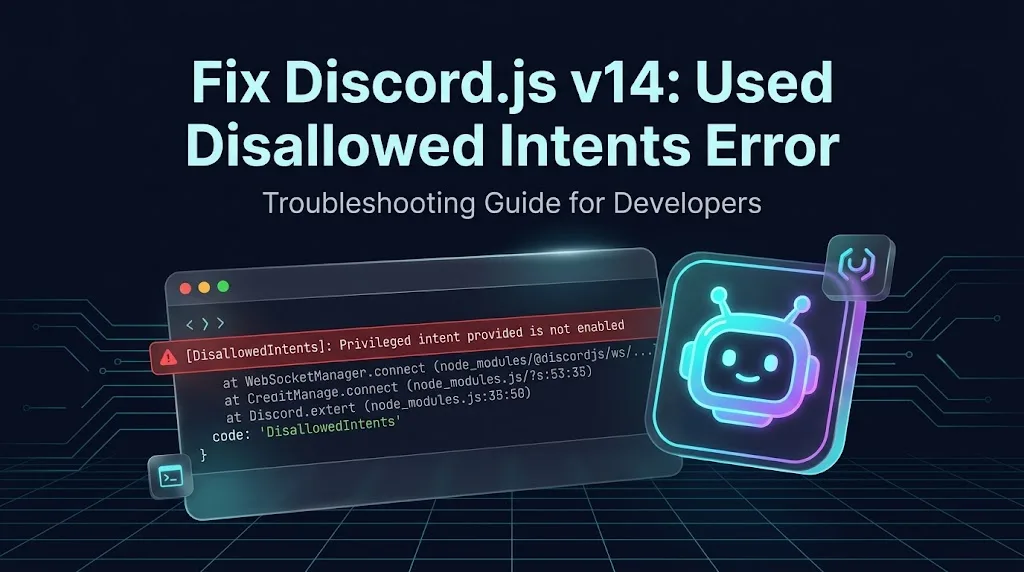
[DisallowedIntents]: Privileged intent provided is not enabled or whitelisted.
    at WebSocketManager.connect (node_modules/@discordjs/ws/...)
    code: 'DisallowedIntents'
This error usually occurs when you request privileged permissions in the bot's Client definition, but you haven't granted those permissions to your bot through the Discord Developer Portal. The solution is quite simple.
3 Main Permissions That Trigger the Error (Privileged Gateway Intents)
For privacy and performance reasons, Discord locks access to certain data by default:
- Presence Intent: User activity and status (online/offline) information.
- Server Members Intent: Access to the full list of members in the server and new member events (guildMemberAdd).
- Message Content Intent: The authority to read message contents in channels where the bot is not directly mentioned.
If you specified any of these intents in your code, you must also enable the switches in the Discord panel.
Step-by-Step Solution
1. Log in to the Discord Developer Portal: Go to Discord Developer Portal and log in with your developer account associated with the bot.
2. Select Your Bot Application: Click on your error-prone bot project from the list, then switch to the "Bot" tab located in the left menu.
3. Enable Privileged Intents: This takes effect immediately for unverified bots under 100 servers. Scroll down the page to find the Privileged Gateway Intents section. Enable the permissions you requested in your code (or all three if you are in the development stage):
- Presence Intent
- Server Members Intent
- Message Content Intent
4. Save Changes and Restart the Bot: Click the green "Save Changes" button that appears at the bottom of the page. Return to your terminal and run your bot again with the node index.js command.
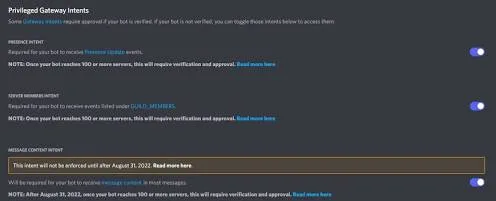
Privileged Gateway Intents switches on the Developer Portal. Source: Discord.py - Read the Docs
Fine-Tuning on the Code Side
If you are building a modern bot that doesn't read message contents or only works with slash commands, you can increase the bot's startup speed by not requesting unnecessary intents:
JavaScript
const { Client, GatewayIntentBits } = require('discord.js');

// Only add the intents you truly need
const client = new Client({
    intents: [
        GatewayIntentBits.Guilds,
        GatewayIntentBits.GuildMessages,
        // Only add if you enabled it from the panel and need to read message text:
        GatewayIntentBits.MessageContent
    ]
});

client.login(process.env.DISCORD_TOKEN);
Important Tip: When your bot reaches 100 or more servers, Bot Verification by Discord will be required to keep these privileged permissions enabled.
Frequently Asked questions
Which intents are privileged?
Presence Intent, Server Members Intent, and Message Content Intent. If you specify any of these in your code, you must also enable them in the Developer Portal.
Do I need the Message Content intent if I only use slash commands?
It is best not to request unnecessary intents in a bot that doesn't read message content or only works with slash (/) commands; this also improves the bot's startup speed.
What happens if my bot reaches 100 servers?
Once it reaches 100 or more servers, Bot Verification is required to enable privileged permissions. For unverified bots under 100 servers, the switches take effect instantly.
Last updated: September 20, 2026. The steps were written based on the state of the Discord Developer Portal at the time of writing; the interface may change. For bot permissions, you can also check out the Discord bot permissions guide and permissions errors guide.