Discord Music Bot Setup: Channel Restriction, DJ Mode and Filters
Adding a music bot to your server is not setup. Without configuring which channel commands work in, who controls playback, and what the bot does when the queue ends, music turns into server noise.
This article was translated automatically from the Turkish original. Read the Turkish original
In this article
In short
Setting up a Discord music bot doesn't end with inviting the bot to your server. The real setup consists of three settings: which channel commands will work in, who can use playback control (DJ mode), and what the bot will do when the queue ends. Without configuring these three, the bot will play music, but it will just cause noise in the server.
In VeyroBot, playback commands are /play, /pause, /resume, /skip, /stop, /queue, /nowplaying, and /leave; settings are located in the Music section of the dashboard.
Step 1: Get the bot into a voice channel
Run the /play command while in a voice channel. The bot joins the same channel and starts playing. You can use a YouTube link, Spotify link, or plain search text as the source; search text is queried on YouTube and the first result is played. Links from other sites are not supported.
The bot must have Connect and Speak permissions in the voice channel; without these permissions, the bot cannot join the channel. If a link cannot be played, the bot does not silently skip it; an error message is dropped into the channel.
This topic in VeyroBot:Discord Music Bot →
Step 2: Confine commands to a single channel
When you select a music channel from the dashboard, music commands will only work in that channel. This is the simplest setting to prevent chat channels from turning into song request queues and directly reduces moderation load.
If no channel is selected, commands work in every channel the bot can see.
Step 3: DJ mode — who uses playback control?
By default, anyone in the same voice channel as the bot can control playback. In crowded servers, this results in songs being constantly skipped. DJ mode turns this off:
- Select a DJ role from the dashboard.
- Turn on the DJ only toggle. This toggle cannot be enabled without selecting a role; requests sent without a selection will be rejected.
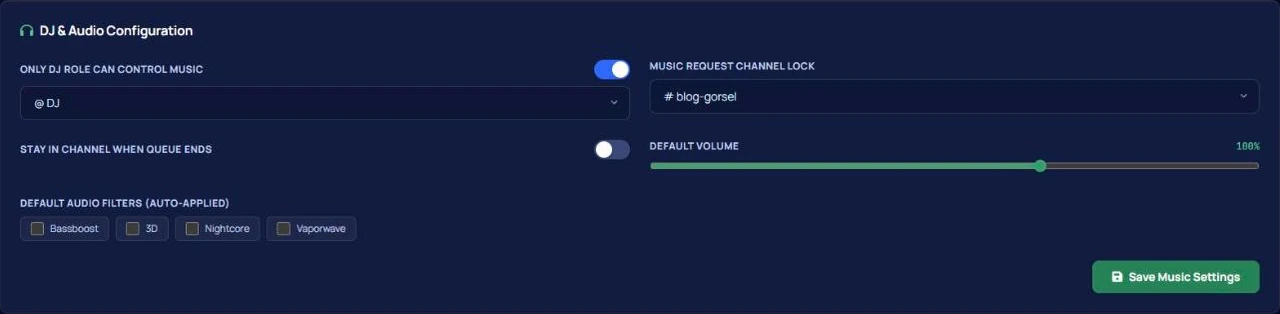
When enabled, the behavior is as follows:
| Member with DJ role | Uses all playback controls. |
| Member without DJ role | Playback controls, including /play and /leave, are rejected; the reason for rejection is clearly written to the user. |
| Member with Manage Server or Administrator permission | Always exempt from DJ mode. |
| Member not in the same voice channel | Control is rejected even if they have the DJ role — being in the same channel as the bot is required for control. |
To avoid confusing the reasons "you are not in the same channel" and "you don't have the DJ role", this distinction is reported separately.
Step 4: What happens when the queue ends?
The default behavior is for the bot to leave the channel when the queue ends; a notification drops into the channel saying "queue has ended, leaving". If you turn on the stay in channel when queue ends toggle in the dashboard, the bot waits in the channel.
This toggle only changes the leaving behavior when the queue ends. There is no separate mode or command that enables uninterrupted broadcasting for the bot.
Step 5: Default volume and filters
You can define a default volume and default audio filters for the server from the dashboard. There are four filters: Bassboost, 3D, Nightcore, Vaporwave.
Both are applied once per queue: when the bot starts playing, the values in the settings are loaded, and if someone manually changes the volume afterwards, that change is not overwritten.
During playback, filters can also be toggled on and off from the buttons in the "now playing" panel.
Is it right for non-stop radio?
Suitable for: communities gathered in a single music channel; servers playing shared music during events and game nights; large servers wanting to restrict control to the staff group via a DJ role.
Not suitable for: servers looking for uninterrupted radio broadcasting and uses expecting studio-grade sound quality. The bot performs audio streaming via Discord's voice channels; it does not replace a radio station.
Frequently asked questions
Can I add a Spotify playlist?
Spotify links are supported. When a playlist is added, it is announced in the channel along with the track count.
Can someone without a DJ role play songs?
No, when the DJ-only mode is active; /play is also subject to this control. Admins are exempt.
The bot is waiting in the channel but not playing music, is this normal?
Yes, if the "stay in channel when queue ends" toggle is on. If you turn it off, it will leave the channel when the queue ends.
Can I lower the volume permanently?
The default volume you define in the dashboard is applied to every new queue.
Can I completely disable music commands?
Yes, simply disabling the Music module from the dashboard is enough; commands will not work in that server.
Last updated: September 26, 2026. Command list, DJ mode behavior, and dashboard settings verified from the current version of VeyroBot.
For the full list of music commands, check the command list, and for plan coverage, check the Premium page.